
Applications
SpatialDesk
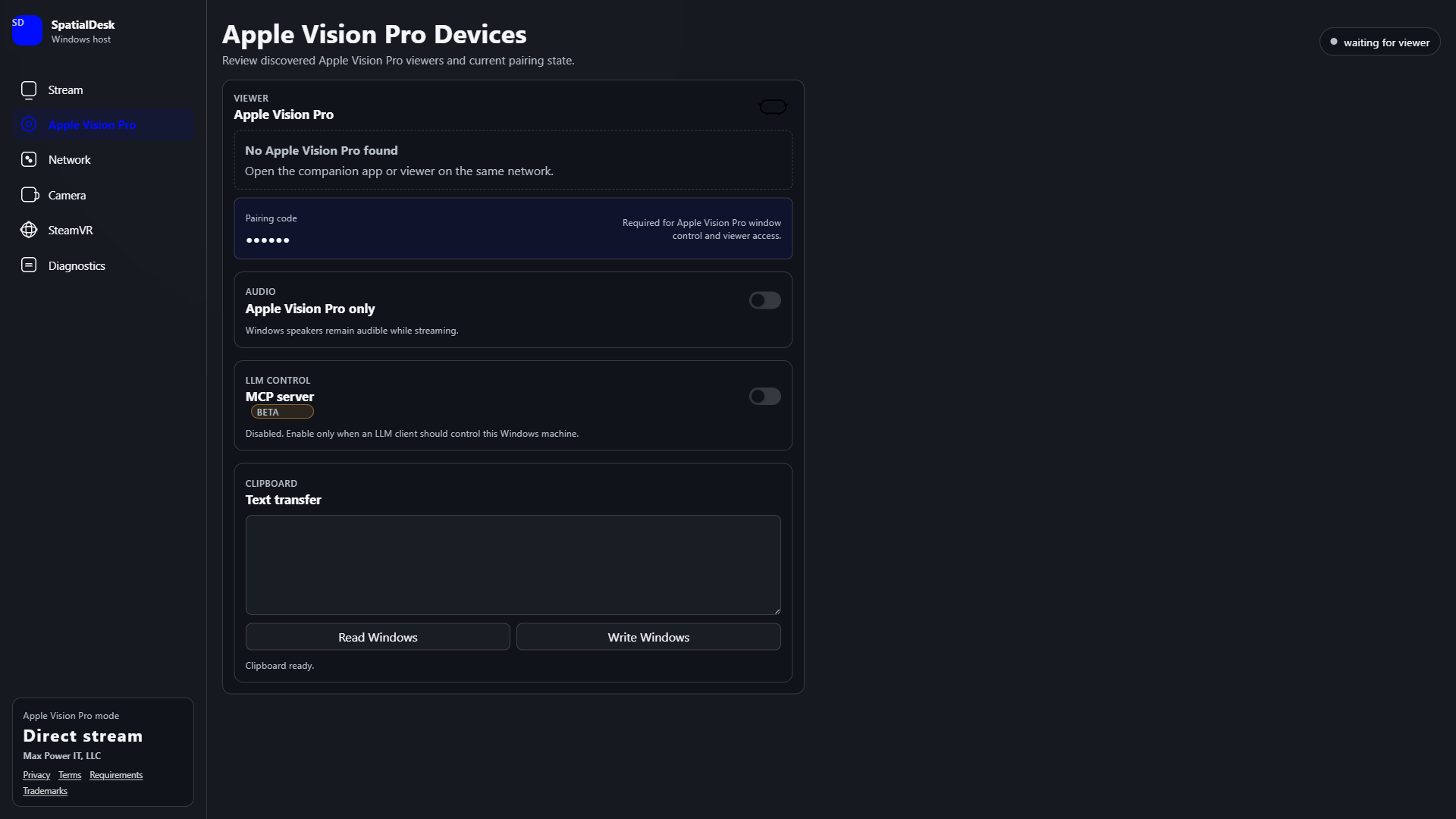
Stream selected Windows application windows directly to Apple Vision Pro over your trusted private network.
SpatialDesk is now available for Apple Vision Pro on the App Store. The free Windows companion is available from Microsoft Store.
Private-network spatial workspace
Your Windows applications, placed in space.
SpatialDesk connects its Windows host to the companion visionOS app on the same trusted private network. Select an application window, pair the headset, and interact without relaying video or audio through Max Power IT servers.
- Individual Windows application-window streaming
- Pointer, click, keyboard, clipboard, and pinch-drag scrolling
- Hardware-accelerated H.264 or HEVC encoding when supported
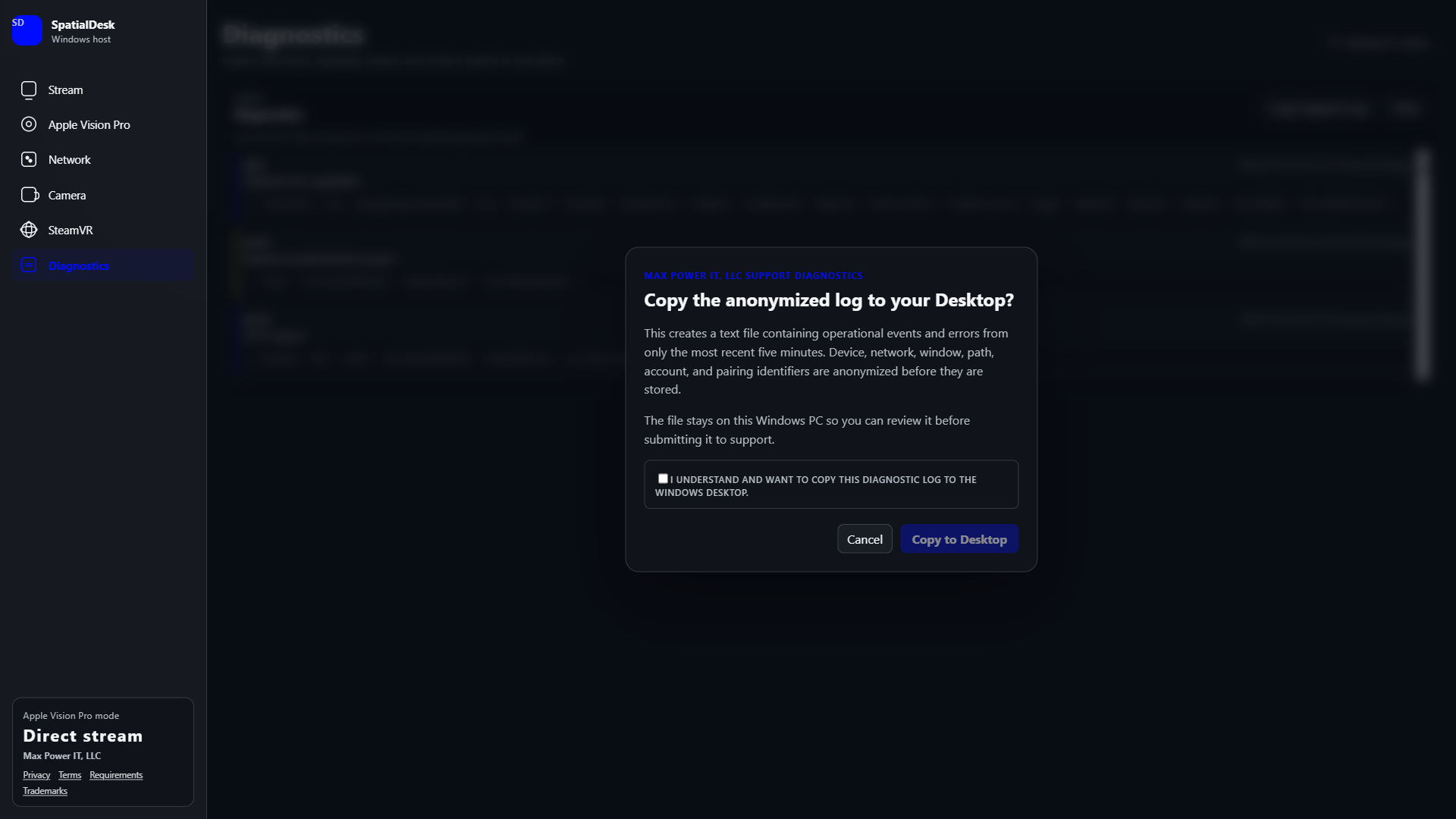
- Five-minute anonymized rolling diagnostics stored locally
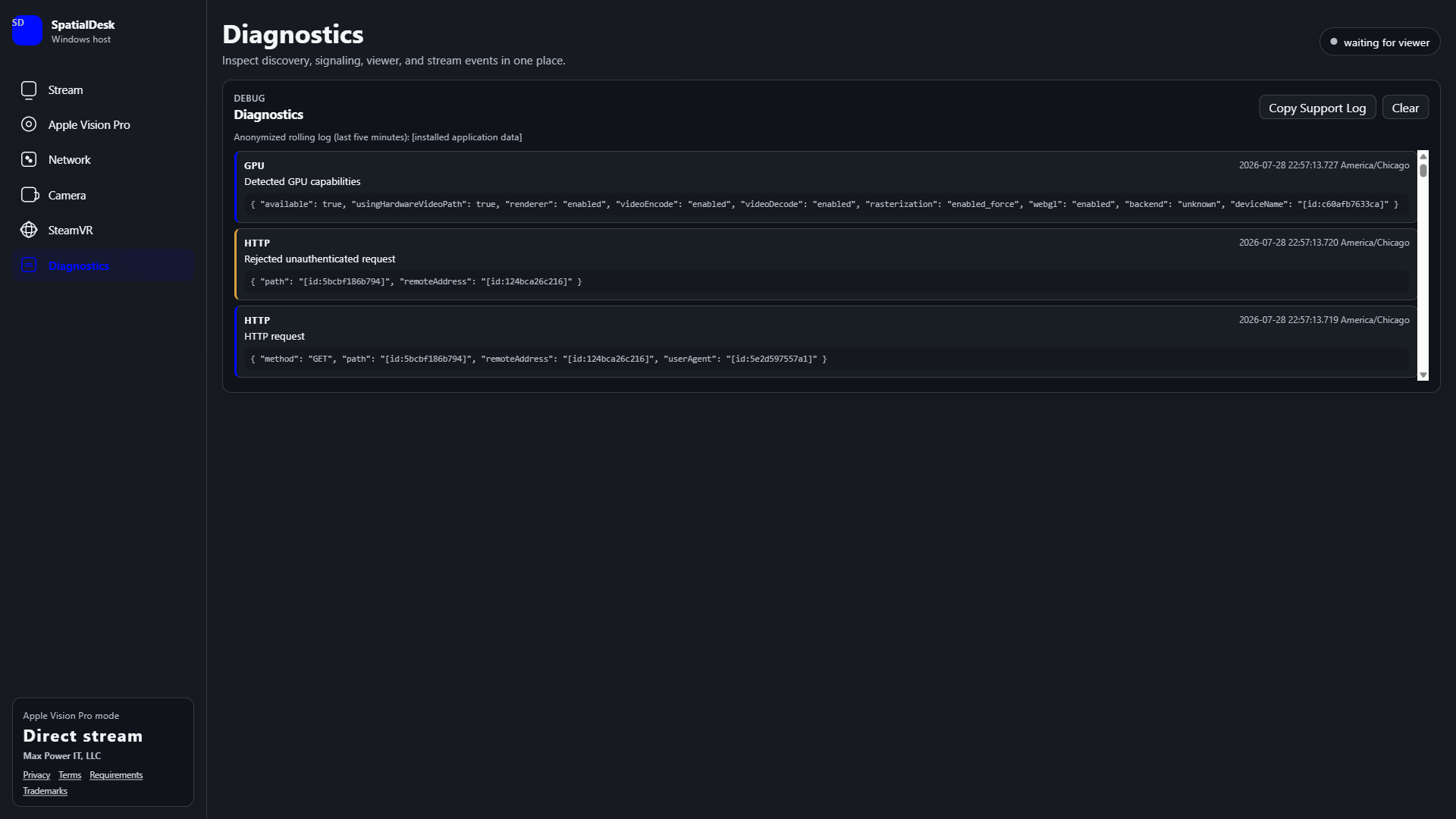
- Optional MCP Server and immersive XR capabilities marked Beta

Inside the app
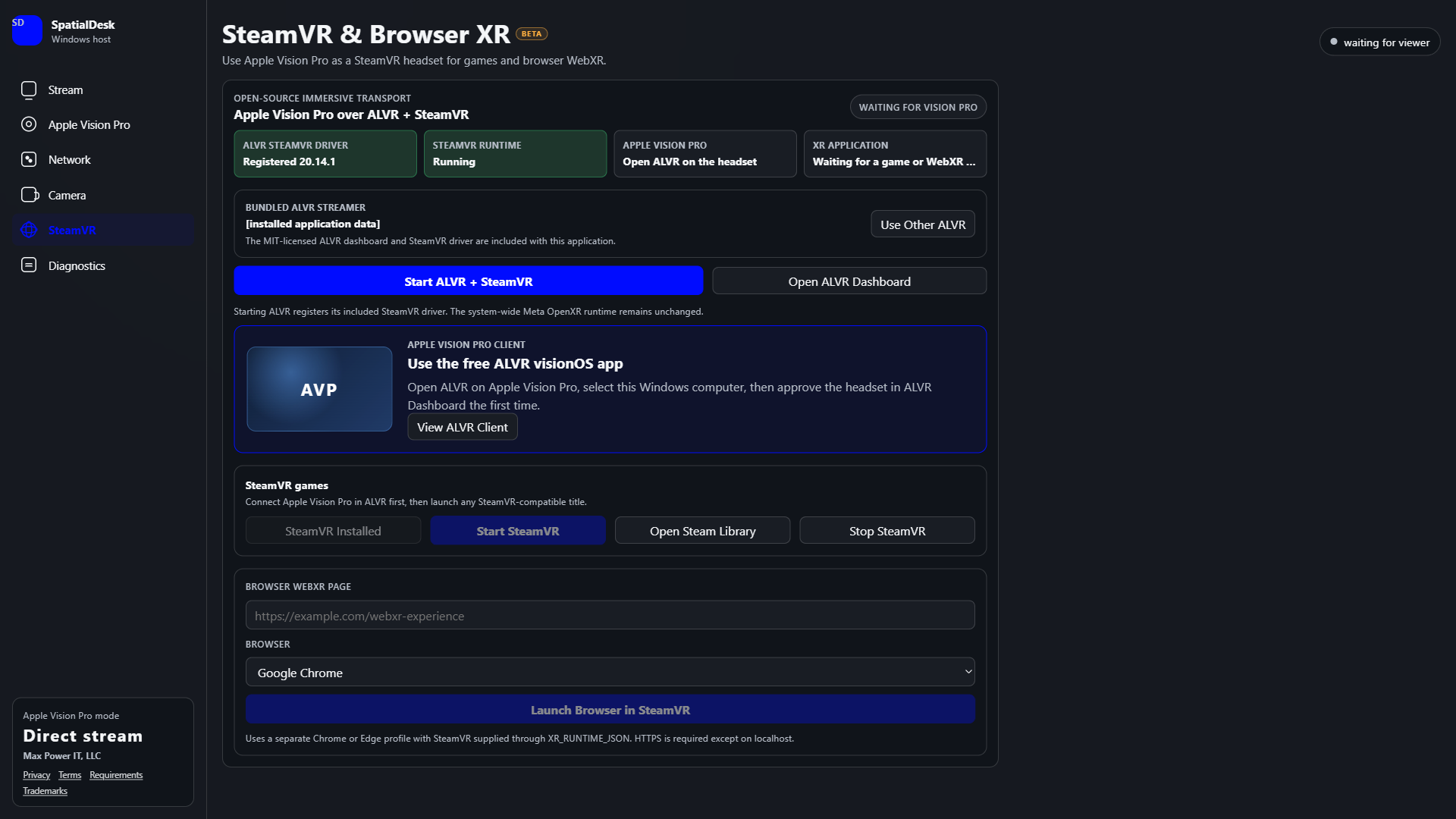
A clear view of pairing, XR, privacy, and routing.
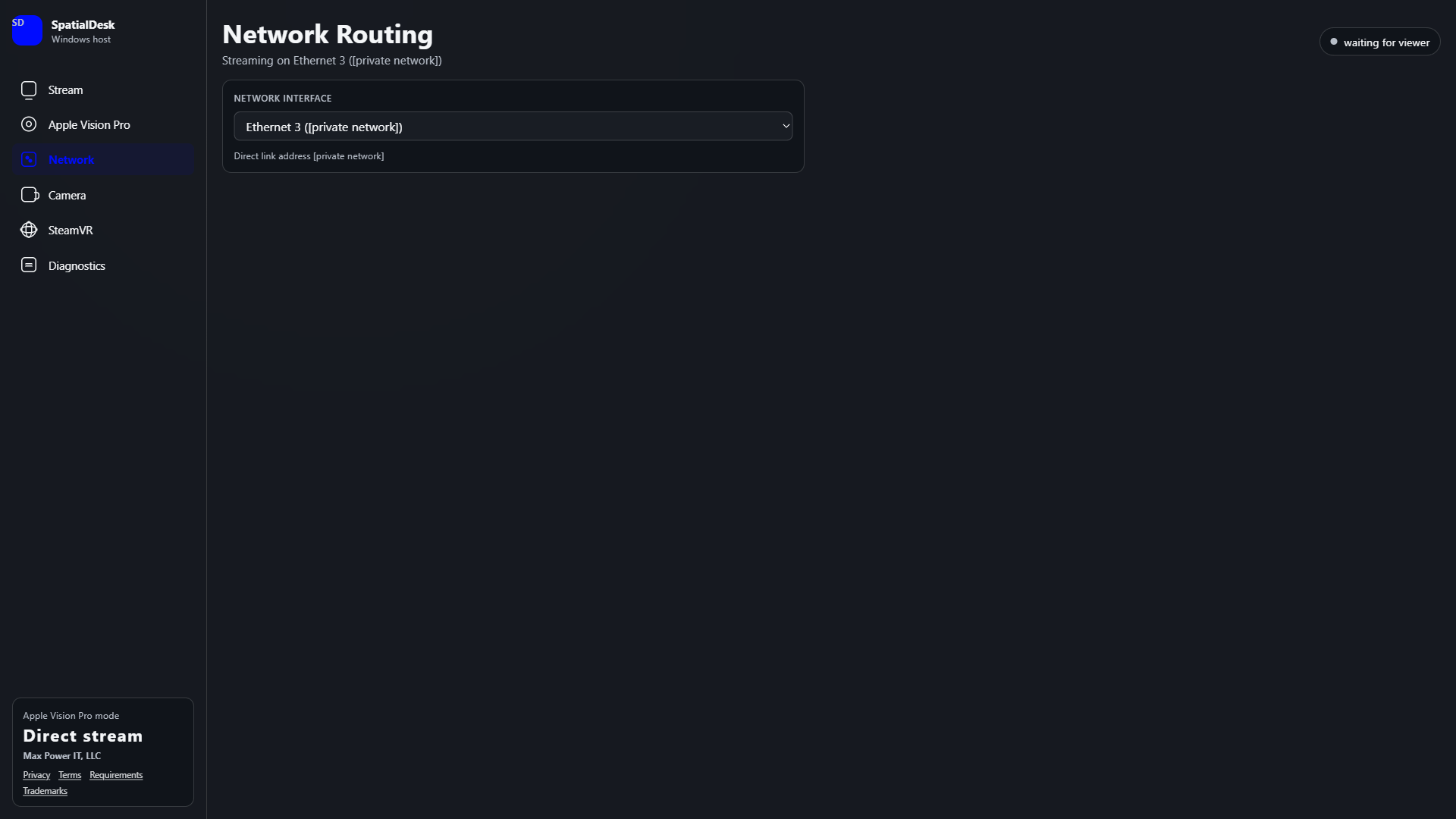
Setup and support
Start with the manual, then use the support portal if you need help.
Independently developed by Max Power IT, LLC. Not affiliated with, sponsored by, certified by, or endorsed by Apple Inc., Microsoft, Valve Corporation, or other identified compatibility providers. Third-party names identify compatibility only.